
Quick Start Guide
Follow this quick guide to set up your first space, create a project, and invite your team.
Step 1: Navigating to WorkFuz
Section titled “Step 1: Navigating to WorkFuz”WorkFuz is accessible in two ways:
- WordPress Admin: Go to
WorkFuzin the admin menu. - Frontend Dashboard: Log in via your white-labeled client portal URL (e.g.,
https://yourdomain.com/dashboard/workfuz).
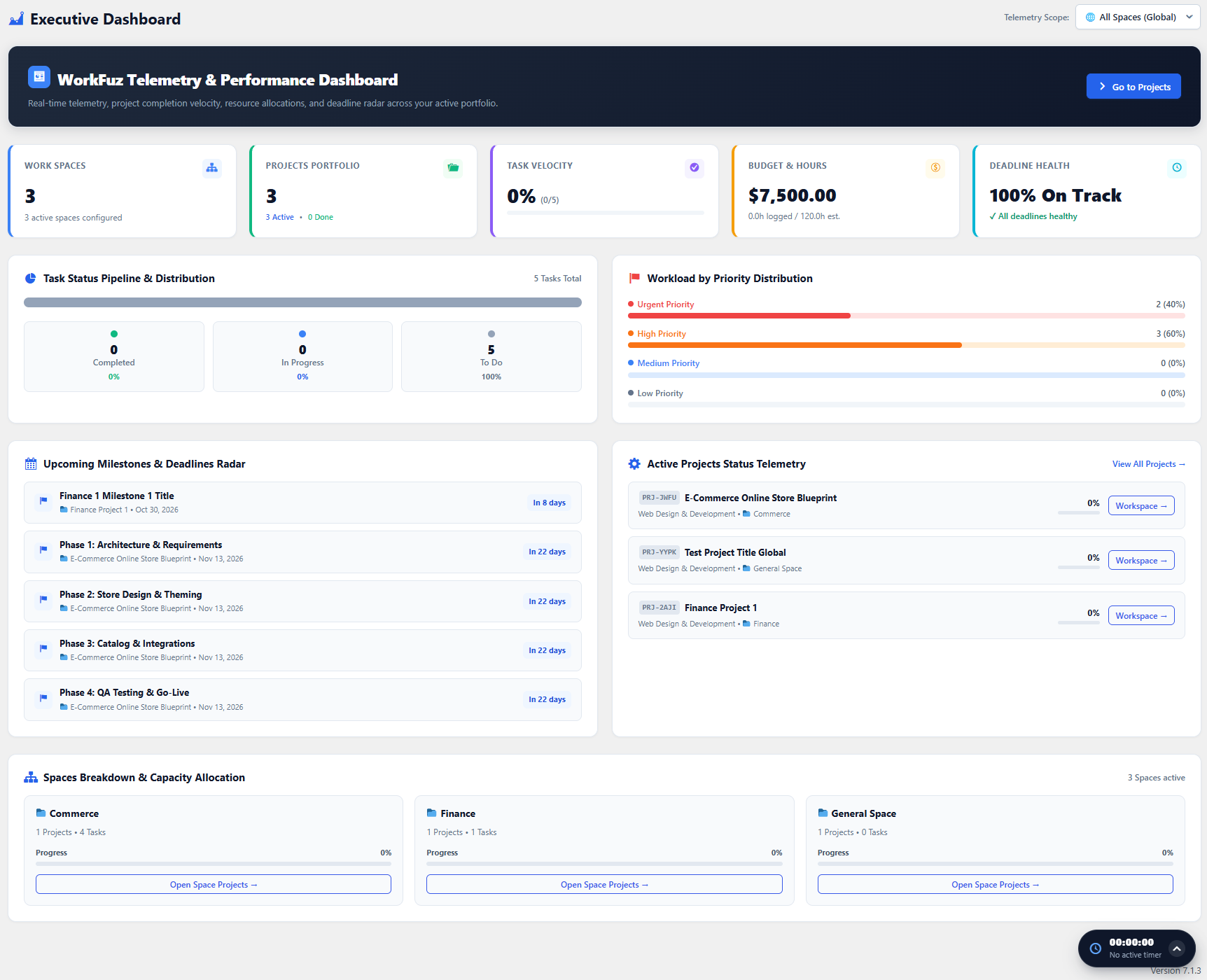
Step 2: Create Your First Space
Section titled “Step 2: Create Your First Space”Spaces act as primary containers for your organization (e.g. Client Projects, Internal Engineering, Marketing).
- Click the + New Space button in the top navigation.
- Enter the Space Name (e.g. Client Accounts).
- Assign a Space Manager responsible for team oversight.
- Set the privacy level (Public to Organization or Restricted to Members).
- Click Create Space.
Step 3: Launch a Project from Blueprint
Section titled “Step 3: Launch a Project from Blueprint”Instead of setting up tasks and milestones manually, launch an instant blueprint:
- Inside your Space, click From Blueprint.
- Select a pre-configured template (e.g. Agile Scrum 2-Week Sprint or Full Brand & Web Redesign).
- Enter your Project Name, target due date, and budget.
- Click Generate Project. All milestones, tasks, checklists, and hour estimates will be populated automatically.
Step 4: Organize with the Kanban Board & Gantt
Section titled “Step 4: Organize with the Kanban Board & Gantt”Switch to the Kanban tab to drag and drop tasks across workflow columns (To Do, In Progress, In Review, Done).
Switch to the Gantt tab to visually drag milestone bars and connect task dependencies.
Step 5: Check Team Capacity
Section titled “Step 5: Check Team Capacity”Before assigning multiple tasks, expand the Team Workload tab or view the live capacity pills next to team members in the assignee selector to ensure no one is over-allocated.